
Managing receipts shouldn't be complicated. Whether it's a grocery bill, restaurant receipt, fuel bill, or warranty document, Hisaab helps you digitize and organize everything while keeping your data completely private.
With offline OCR, quick expense entry, and a built-in Photo Gallery, Hisaab works as both a personal money tracker and a smart receipt manager.
Scan Receipts in Seconds
The fastest way to log a transaction with a receipt in Hisaab is through the Quick button. This is designed for speed — you can go from paper receipt to logged entry in under 10 seconds.
Steps:
Open Hisaab and tap the Quick button at the bottom of the screen in Expense or Income Tab. You will see two receipt scanning options:
- Scan Receipt from Camera — point your phone camera at the receipt and capture it on the spot.
- Scan Receipt from Gallery — pick an existing photo of a receipt from your device gallery.
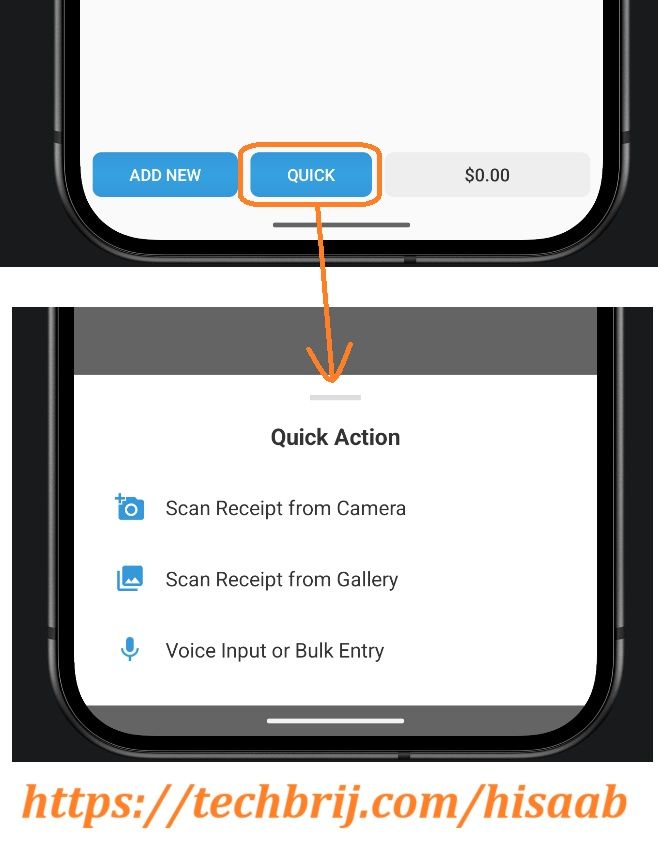
Once you select an option, Hisaab's offline OCR (Optical Character Recognition) engine reads the receipt image, automatically extracts the information and pre-filled into the entry form. Review, adjust if needed, and save.
It helps you create an expense or income entry much faster.
Since the OCR runs completely offline, your receipt images are never uploaded to a server, giving you complete privacy and peace of mind. However, because it works offline, the accuracy and quality of extraction may be limited compared to cloud-based OCR solutions, but privacy remains the first priority.
Add Photos to an Entry
Sometimes one photo isn't enough.
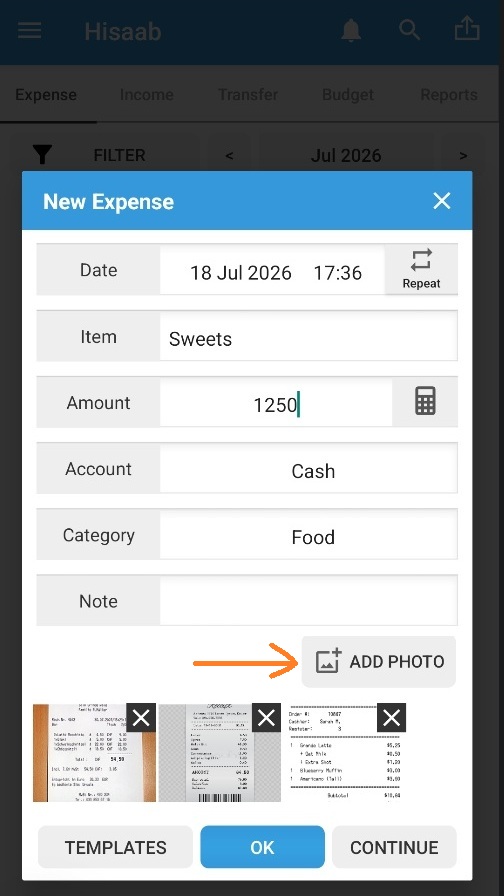
After scanning a receipt and creating the expense, you can attach additional photos to the same entry. These could include:
- Additional receipt pages
- Product photos
- Warranty cards
- Bills or invoices
- Delivery confirmations
- Any other supporting images
Even when creating an entry manually, you can attach one or more photos whenever needed.
This makes every entry more informative and easier to reference later.
Steps for manual photo attachment:
- Create a new expense or income entry, or open an existing one.
- Scroll down to the Photos section within the entry form and tap “ADD PHOTO” button.
- A dialog with two options is displayed. Tap to either:
- Take a new photo using your camera
- Choose from gallery to pick an existing image
- Attach as many photos as needed and save the entry.
Find Every Receipt in One Place
Every photo attached to any entry — whether from an OCR scan or a manual attachment — is available in one central place: Photo Gallery.
Tap the "hamburger" menu (three horizontal lines) in the top-left corner of the Toolbar OR swipes a finger from the left edge of the activity to view navigation drawer. Here you will get “Photo Gallery” option.
- It displays all receipt and transaction photos in a grid view, sorted chronologically.
- Tap any photo to view it full-size.
- Once a photo is open, tap "Show Entry" to jump directly to the linked transaction and see the complete entry details — amount, date, category, payment method, notes, and all other fields.
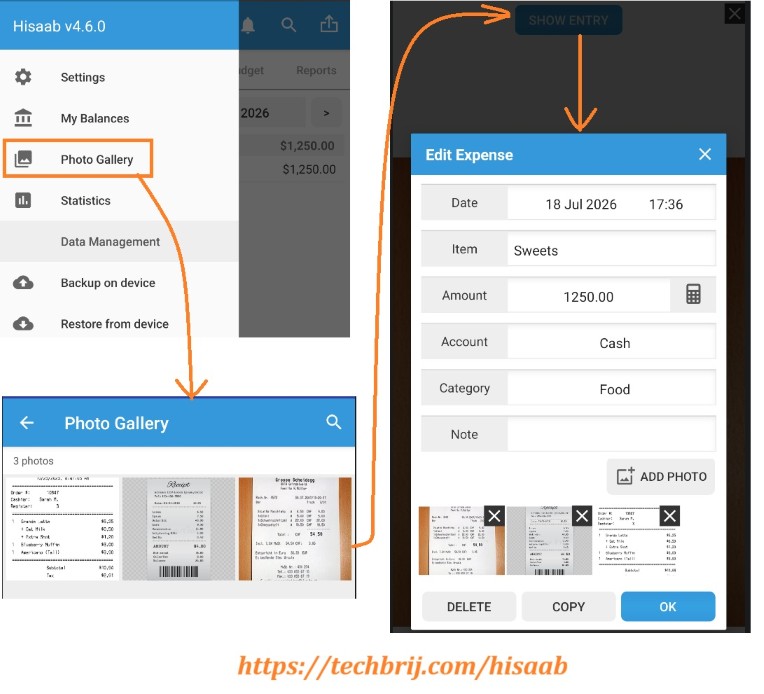
This makes Photo Gallery a powerful reverse-lookup tool. If you find a receipt photo but cannot remember the details of that expense, one tap takes you straight to the full transaction record.
Designed for Privacy
Privacy has always been one of Hisaab's core principles.
All receipt and transaction photos are stored in the app's private folder on your device.
This means:
- The photos are not visible in your device's standard gallery app.
- Other apps cannot access them without explicit permission.
- If you uninstall Hisaab, the private app folder and its contents are removed.
This is by design — your financial photos should not accidentally appear in a shared album or sync to a cloud service without your knowledge.
Backing Up and Importing Your Photos
This is an important distinction to understand:
Regular Backup (Data Only):
When you use Hisaab's standard Backup & Restore feature (from Settings, to local storage or Google Drive), it backs up your transaction data only — entries, categories, budgets, accounts, and settings. Receipt photos are not included in a regular backup.
Exporting Photos for Backup:
To include your receipt photos in a backup, you need to export them separately. Here's how:
- Open the left sidebar (swipe right or tap the hamburger menu).
- Look for the export photos option in the sidebar.
- Use this to export your photo collection to a location of your choice — local storage or an external drive.
Tip: Do this periodically if you attach a lot of receipts, so you have a complete backup of both your transaction data and your receipt images.
If you later want to restore those images on the same device or move them to a new one, use the Import Photos option in the left sidebar. You can import the exported folder of images back into Hisaab and reconnect them with your entries.
This makes it easy to:
- Keep a separate photo archive
- Restore receipt images after reinstalling the app
- Move exported photos to another device
- Rebuild your Photo Gallery from an exported folder
A Smarter Way to Manage Receipts
Whether you need to track business expenses, preserve warranty receipts, or simply keep your spending organized, Hisaab makes the process simple.
With offline OCR, quick expense entry, multiple photo attachments, a centralized Photo Gallery, and privacy-first storage, Hisaab is more than an expense tracker—it's your personal receipt manager.
Give it a try the next time you have a receipt in your hand.
Download Hisaab — Money Manager & Budget on Google Play. Free, no ads, no sign-in required.